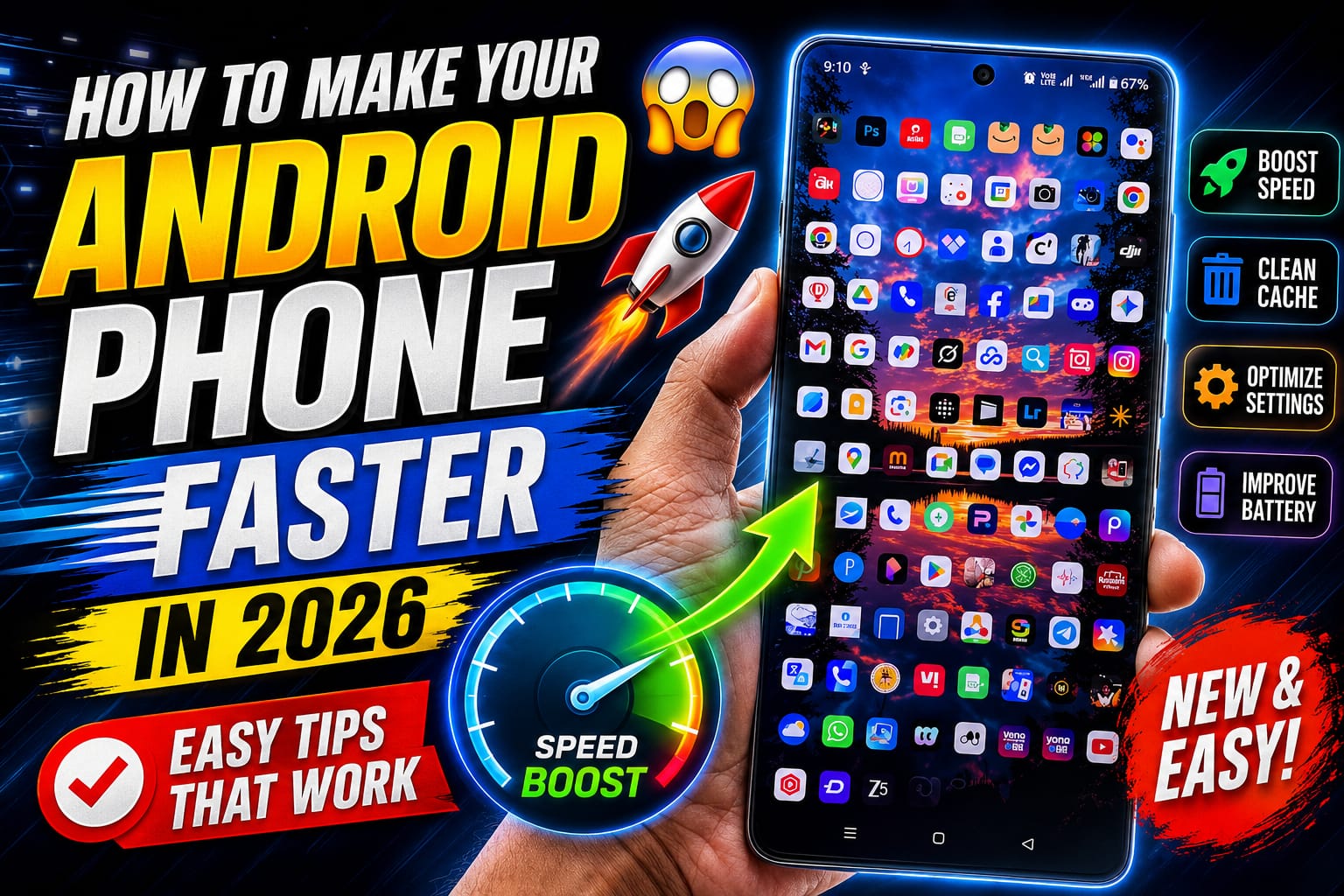
Have you noticed that your Android phone isn’t as fast as it used to be? Apps take longer to open, games lag, and even simple tasks feel slower than before. The good news is that you don’t need to buy a new smartphone right away. In most cases, a few simple adjustments can significantly improve your phone’s performance.
In this guide, you’ll learn practical and proven ways to make your Android phone faster in 2026. These tips work on Samsung, Xiaomi, OPPO, Vivo, Realme, OnePlus, Google Pixel, and almost every Android device.
Why Android Phones Become Slow Over Time
Before fixing the problem, it’s important to understand why Android devices slow down.
Common reasons include:
- Too many apps running in the background
- Low storage space
- Outdated software
- Excessive cache files
- Heavy animations and visual effects
- Malware or unwanted apps
- Old batteries affecting performance
- Overheating issues
Now let’s look at the solutions.
1. Restart Your Phone Regularly
Many people never restart their phones for weeks or even months.
A simple restart:
- Clears temporary memory
- Stops unnecessary background processes
- Refreshes system performance
- Fixes minor software glitches
Try restarting your phone at least once every few days.
2. Remove Apps You Don’t Use
Unused applications consume storage and may run background services even when you’re not actively using them.
To remove unnecessary apps:
- Open Settings
- Go to Apps
- Review installed apps
- Uninstall apps you haven’t used recently
The fewer unnecessary apps installed, the smoother your Android phone will perform.
3. Free Up Storage Space
Low storage is one of the biggest reasons for slow Android performance.
Experts recommend keeping at least 15-20% of your storage free.
Delete:
- Old videos
- Duplicate photos
- Downloaded files
- Unused documents
- Offline content you no longer need
You can also move files to cloud storage services like Google Drive.
4. Clear App Cache
Apps store temporary files called cache to improve loading times. However, over time these files can become excessive and affect performance.
To clear cache:
- Open Settings
- Select Apps
- Choose an app
- Tap Storage
- Select Clear Cache
Focus on apps such as:
- TikTok
- Chrome
- YouTube
This can instantly free up storage and improve responsiveness.
5. Disable Unnecessary Background Apps
Many apps continue running even when you’re not using them.
Background apps can:
- Consume RAM
- Drain battery
- Slow down the device
To reduce background activity:
- Open Settings
- Battery
- Background Usage Limits
- Restrict unused apps
Android 14, Android 15, and Android 16 provide better background management options than older versions.
6. Update Android Software
Software updates often include:
- Performance improvements
- Security patches
- Battery optimization
- Bug fixes
To check for updates:
- Open Settings
- System
- Software Update
- Download and install available updates
Keeping your device updated ensures optimal performance.
7. Use Lite Versions of Apps
Many popular apps have lightweight alternatives.
Examples include:
- Facebook Lite
- Messenger Lite
- TikTok Lite
- Google Go
- Maps Go
Lite apps consume:
- Less RAM
- Less storage
- Less battery power
They are especially useful for older Android devices.
8. Reduce Animations
Android animations look attractive but can make phones feel slower.
You can speed up your device by reducing animation scales.
Enable Developer Options:
- Open Settings
- About Phone
- Tap Build Number seven times
Then:
- Open Developer Options
- Find:
- Window Animation Scale
- Transition Animation Scale
- Animator Duration Scale
- Set each to 0.5x or Off
Your phone will instantly feel more responsive.
9. Remove Unnecessary Widgets
Widgets constantly update information on your home screen.
Too many widgets can:
- Consume memory
- Use battery power
- Slow performance
Keep only the widgets you truly need.
10. Use a Lightweight Launcher
Heavy launchers can impact speed.
Popular lightweight Android launchers include:
- Nova Launcher
- Niagara Launcher
- Lawnchair Launcher
These launchers often feel smoother than manufacturer-installed interfaces.
11. Disable Auto-Sync for Unused Accounts
Every synced account consumes system resources.
Review your accounts:
- Settings
- Accounts
- Remove unused accounts
- Disable unnecessary syncing
This can improve both speed and battery life.
12. Scan for Malware
Malicious apps can seriously slow down Android devices.
Warning signs include:
- Excessive ads
- Battery drain
- Phone overheating
- Random pop-ups
Use trusted security apps and uninstall suspicious applications immediately.
13. Keep Your Phone Cool
Heat is one of the biggest performance killers.
When a phone overheats, Android automatically reduces processing power to protect internal components.
To prevent overheating:
- Avoid direct sunlight
- Remove thick phone cases while gaming
- Close unused apps
- Avoid charging during intensive gaming
A cooler phone performs faster.
14. Turn Off Unused Features
Many Android phones enable features that users rarely use.
Consider disabling:
- NFC (if unused)
- Bluetooth
- Nearby Share
- Location Services
- Auto-download features
This reduces background activity and improves overall efficiency.
15. Factory Reset as a Last Resort
If your Android phone remains slow after trying everything else, a factory reset can help.
Before resetting:
- Backup important data
- Save photos and documents
- Sync contacts
Then:
- Settings
- System
- Reset Options
- Factory Data Reset
A clean installation often makes a phone feel brand new again.
Bonus Tip: Avoid Fake RAM Booster Apps
Many apps claim to:
- Boost RAM
- Increase speed
- Improve gaming performance
Most of these apps do not deliver meaningful results and may actually slow your device further.
Stick to Android’s built-in optimization tools instead.
Best Android Performance Practices for 2026
Follow these habits regularly:
✓ Keep storage at least 20% free
✓ Update software frequently
✓ Clear cache monthly
✓ Remove unused apps
✓ Restart weekly
✓ Reduce animations
✓ Avoid suspicious applications
✓ Keep the phone cool
These simple habits can significantly extend the life of your Android device.
Final Thoughts
You don’t always need the latest flagship smartphone to enjoy a fast Android experience. In 2026, Android has become smarter and more efficient than ever, but proper maintenance is still essential.