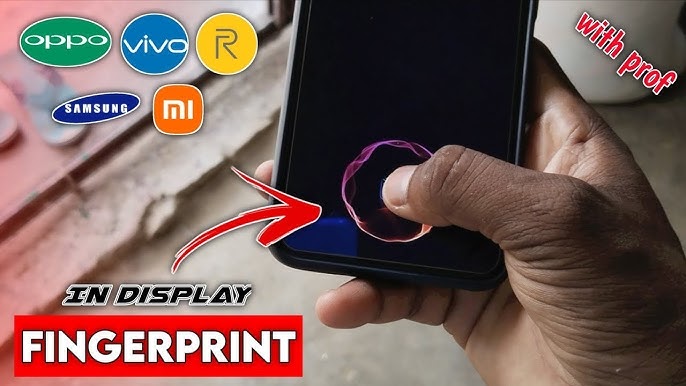
Smartphone security has come a long way, and one of the most loved features today is the in-display fingerprint sensor, also known as the display fingerprint scanner. It looks futuristic, feels premium, and unlocks your phone with just a tap on the screen.
But what if your Android phone doesn’t have a built-in display fingerprint option?
Many users search for:
“Display fingerprint for any Android – very easy”
“How to get fingerprint on screen on Android”
“Add in-display fingerprint animation to Android”
In this detailed guide, we’ll explore:
- ✅ What display fingerprint actually is
- ✅ Whether you can add it to any Android phone
- ✅ Easy methods using apps
- ✅ What’s real vs fake
- ✅ Safety and privacy concerns
- ✅ Best tips for customization
Let’s dive in 🚀
📱 What Is a Display Fingerprint Sensor?
A display fingerprint sensor is a biometric system built directly under the phone’s screen. Instead of placing your finger on a button or at the back, you simply touch a glowing area on the display.
There are three main types used in phones:
- Optical sensors – scan your fingerprint using light
- Ultrasonic sensors – use sound waves for 3D mapping
- Capacitive sensors – traditional physical scanners (side/back)
In-display scanners are usually optical or ultrasonic, and they require special hardware beneath the screen.
🤔 Can You Get Display Fingerprint on Any Android?
Let’s be honest and clear:
👉 You cannot turn a normal phone into a real in-display fingerprint phone if it doesn’t have the hardware.
That part is controlled by physical components inside the device.
However…
✨ You can:
- Add on-screen fingerprint animations
- Create a fake display fingerprint unlock effect
- Use apps that place a fingerprint icon on your screen
- Customize the lock experience for style or fun
These solutions are great for:
- Visual appeal
- Pranks or demos
- Personalization
- Content creation or videos
But they do not replace real biometric security unless your phone already has a fingerprint sensor.
🔧 Easy Ways to Add Display Fingerprint Effect on Android
Here are the simplest and safest methods.
✅ 1. Use Fingerprint Animation Apps
Some Android apps add a glowing fingerprint icon and animation when you unlock your phone.
Common features include:
- In-display fingerprint visuals
- Custom shapes and colors
- Neon or sci-fi styles
- Always-on display effects
- Charging screen fingerprint animation
These apps work by:
- Showing an overlay on your screen
- Activating during lock/unlock
- Syncing with your existing fingerprint sensor (if available)
📌 Important: They do not create new fingerprint hardware—they only decorate the unlock process.
✅ 2. Use Lock Screen Customizer Apps
Another easy method is installing a custom lock screen app.
These can:
- Replace the default lock screen
- Add fingerprint icons
- Simulate in-display scanning
- Add PIN + fingerprint styles
- Create premium-looking effects
This is perfect if your phone has:
- Side fingerprint sensor
- Back fingerprint sensor
- Or face unlock
The app simply makes it look like you’re using the display.
✅ 3. Always-On Display Tools
Some apps provide:
- AOD fingerprint icons
- Charging animations
- Screen tap effects
- Edge lighting
When combined with fingerprint visuals, your phone can feel like a flagship model even if it’s mid-range.
⚠️ Real vs Fake: What You Must Know
A lot of websites and videos claim:
“Enable real in-display fingerprint on any Android in 2 minutes!”
That’s misleading.
🚫 Impossible without hardware
🚫 No software update can add physical sensors
🚫 Rooting won’t magically install scanners
Be careful of apps that:
- Ask for unnecessary permissions
- Request full device access
- Demand payment for “real fingerprint unlock”
- Ask for your fingerprint data directly
🔐 Are These Apps Safe to Use?
Safety matters a lot when dealing with biometrics.
Follow these tips:
✔️ Download only from trusted app stores
✔️ Read reviews and ratings
✔️ Avoid apps asking for admin access
✔️ Never share fingerprint images
✔️ Don’t disable system security
✔️ Keep your main lock method active
👉 If an app claims it can store your fingerprint outside system settings — uninstall immediately.
🎨 Why People Love Display Fingerprint Effects
Even when it’s just visual, users enjoy these features because:
- Looks premium
- Feels futuristic
- Great for customization lovers
- Perfect for YouTube shorts or reels
- Makes charging screens cooler
- Adds personality to the phone
For tech bloggers and creators, this topic performs well because people constantly search for Android tricks and hidden features.
🧠 SEO Bonus: Why “Display Fingerprint for Any Android” Is Trending
This keyword works well because:
- Millions use budget or mid-range phones
- People want flagship features
- Android customization is huge
- TikTok & Shorts popularize visual tricks
- Users love hacks and shortcuts
Related keywords you can sprinkle in:
- display fingerprint android
- fingerprint on screen android
- in display fingerprint app
- android fingerprint animation
- add fingerprint on screen
- fingerprint scanner display
- android lock screen fingerprint
🛠️ Step-by-Step Summary (Quick Guide)
Here’s the easiest way:
1️⃣ Open Play Store
2️⃣ Search for fingerprint animation or lock screen apps
3️⃣ Install a highly rated one
4️⃣ Enable overlay permission
5️⃣ Customize the fingerprint style
6️⃣ Keep your real lock method active
7️⃣ Test and enjoy 😎
📌 Final Verdict
If your Android phone doesn’t support an in-display fingerprint sensor by hardware…
👉 You cannot add a real one through software alone.
BUT…
✅ You can add stylish fingerprint effects
✅ Customize your lock screen
✅ Create premium visuals
✅ Enjoy futuristic animations
✅ Make your phone look cooler
Download