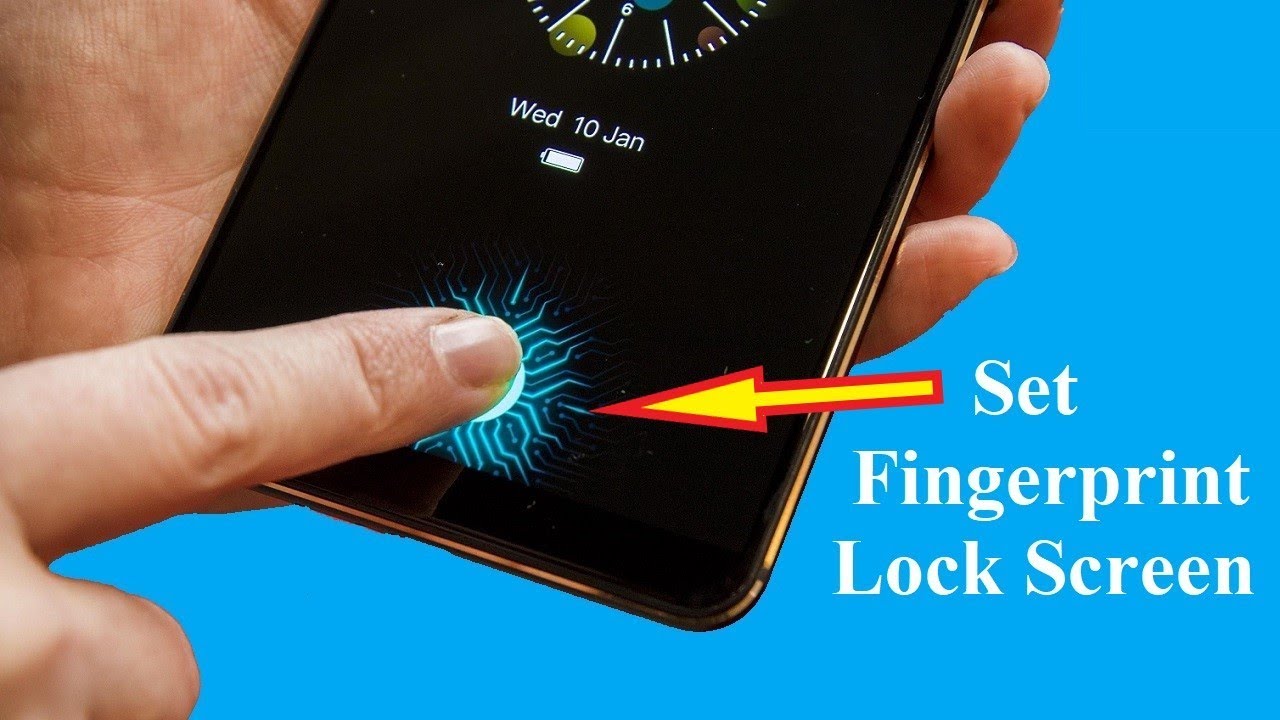
In 2026, smartphone privacy and accidental touch prevention have become more important than ever. Whether you’re watching videos, giving your phone to kids, or avoiding accidental taps, a Touch Lock Screen feature can be incredibly useful.
This detailed guide will show you how to add a touch lock screen on any Android phone, even if your device doesn’t support it natively.
🔒 What is Touch Lock Screen?
A Touch Lock Screen disables all touch inputs on your phone while keeping the screen active. This means:
- No accidental taps while watching videos
- Kids can’t exit apps
- Screen stays on but locked from interaction
✅ Method 1: Use Third-Party Apps (Best & Easy Way)
Most Android phones don’t have built-in touch lock features, so apps are the easiest solution.
🔹 Step-by-Step Guide:
- Open Google Play Store
- Search for:
- Touch Lock App
- Screen Lock Touch Blocker
- Touch Protector
- Install a trusted app (recommended features below)
- Open the app and grant required permissions:
- Accessibility permission
- Display over other apps
- Activate the touch lock feature
- Use shortcut (floating button / notification toggle)
⭐ Best Features to Look For:
- One-tap lock/unlock
- PIN or gesture unlock
- Volume button unlock option
- No ads (or minimal ads)
- Lightweight & battery efficient
🔐 Method 2: Built-in Screen Pinning (Alternative Option)
Android has a hidden feature called Screen Pinning that can act like a touch lock.
🔹 How to Enable:
- Go to Settings
- Tap Security & Privacy
- Find Screen Pinning
- Turn it ON
🔹 How to Use:
- Open any app (e.g., YouTube)
- Tap Recent Apps
- Tap the Pin icon
- Now the app is locked
👉 To exit: Hold Back + Recent buttons
⚙️ Method 3: Use Guided Access Apps (Advanced)
Some apps simulate iPhone-style guided access:
- Lock specific areas of screen
- Disable navigation buttons
- Prevent app switching
Search in Play Store:
- “Guided Access Android”
- “App Lock Touch Control”
📱 Method 4: OEM Features (If Available)
Some brands include touch lock options:
- Samsung (One UI) – Kids Mode / Touch Block
- Xiaomi (MIUI) – Video Toolbox touch lock
- Realme / Oppo – Smart Sidebar tools
Check:
Settings → Special Features → Screen Tools
🔥 Pro Tips for Better Experience
- Use apps with volume button unlock (faster)
- Disable battery optimization for smooth performance
- Use with YouTube / Netflix for uninterrupted watching
- Always set a backup unlock method (PIN or pattern)
⚠️ Important Safety Tips
- Don’t forget your unlock method
- Avoid unknown apps (security risk)
- Check app permissions carefully
touch lock android 2026, lock screen touch disable android, how to disable touch screen android, touch blocker app android, screen lock touch app, kids touch lock android, prevent accidental touch android, guided access android alternative, best touch lock app android 2026
🔖 Hashtags
#TouchLock #AndroidTips #ScreenLock #TechGuide #Android2026 #MobileTricks #TouchBlocker #PhoneHacks #AndroidApps #TechTutorial
🎯 Final Thoughts
Adding a Touch Lock Screen on Android is simple and highly useful in everyday life. While Android doesn’t offer a universal built-in feature, third-party apps and alternatives like screen pinning make it easy to achieve.
If you want the best experience, go with a reliable touch lock app — it’s fast, secure, and works on any Android device.