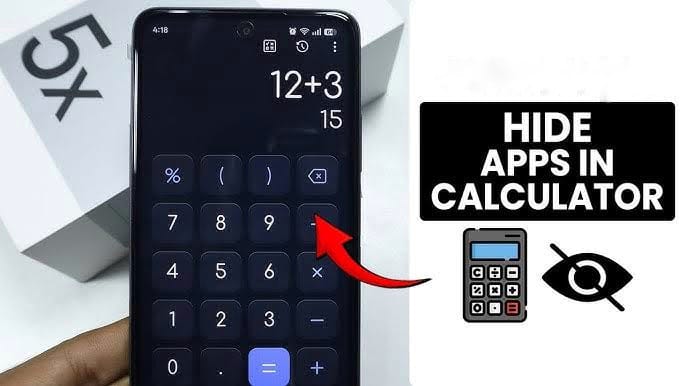
In 2026, smartphone privacy is no longer optional — it’s essential. From personal photos to confidential documents and private apps, we all have content on our phones that we don’t want others to access.
One of the smartest and most discreet ways to protect sensitive content is by using a Calculator Vault App.
In this detailed, SEO-friendly guide, you’ll learn:
- What a calculator vault app is
- How it works
- How to hide photos on iPhone & Android
- How to hide apps on Android
- The safest apps to use in 2026
- Security tips most people don’t know
Let’s dive in.
What Is a Calculator Vault App?
A calculator vault app looks exactly like a normal calculator. It performs real calculations, so if someone opens it, nothing seems suspicious.
However, when you enter a secret PIN and press the “=” button, the app unlocks a hidden vault where you can store:
- Private photos
- Videos
- Documents
- Notes
- Hidden apps (Android only)
It’s one of the most discreet privacy tools available in 2026.
Best Calculator Vault Apps in 2026
Below are the most trusted and widely used calculator vault apps this year.
1. Calculator+ (iOS & Android)
Best for: Hiding photos and videos
Available on: iPhone and Android
Key Features:
- Real working calculator disguise
- PIN, Touch ID, and Face ID support
- Break-in alerts (captures photo of intruder)
- Encrypted storage
- Cloud backup options
How to Hide Photos Using Calculator+ (2026 Method)
- Download Calculator+ from the App Store or Google Play.
- Open the app and create a secret PIN.
- Enter your PIN in calculator mode and press “=”.
- Access the hidden vault.
- Import photos and videos from your gallery.
- Delete the original files from your main gallery.
- Empty the “Recently Deleted” folder for complete privacy.
Important: If you don’t delete the originals, your photos are not truly hidden.
2. Vaulty (Android)
Best for: Advanced Android privacy
Platform: Android only
Features:
- Hide photos and videos
- Fake vault mode (decoy password)
- Intruder selfie alerts
- Cloud backup
- Multiple vault folders
Vaulty continues to receive updates in 2026 and remains one of Android’s most reliable vault apps.
3. Calculator Vault – App Hider (Android)
Best for: Hiding apps + photos
Platform: Android
This app allows you to:
- Hide WhatsApp
- Hide Instagram
- Hide Facebook
- Clone apps for dual accounts
- Hide photos and videos
How to Hide Apps in Calculator Vault (Android 2026)
- Install Calculator Vault – App Hider.
- Set a secure PIN.
- Grant necessary permissions.
- Import apps into the vault.
- Disable or hide original app icons.
- Access hidden apps using your secret calculator PIN.
⚠️ Note: Apple does NOT allow third-party apps to hide other apps due to iOS security restrictions.
How to Hide Photos in Calculator App on iPhone (2026)
Apple restricts deep system access, but you can still hide photos securely.
Step-by-Step Guide:
- Install Calculator+.
- Set a strong PIN and enable Face ID.
- Import private photos.
- Delete them from the Photos app.
- Clear the “Recently Deleted” folder.
Alternative iPhone Method (Without Third-Party Apps)
You can also:
- Move photos to the “Hidden” album.
- Lock the Hidden album using Face ID (iOS 17+).
However, this method is less secure than a calculator vault app.
How to Hide Apps in Calculator App (Android Only)
Android allows app cloning and sandboxing, which makes hiding apps possible.
2026 Method:
- Install Calculator Vault – App Hider.
- Import selected apps.
- Remove original app icons.
- Disable notifications preview.
- Access apps through calculator PIN entry.
This method is especially useful for messaging and social media apps.
Is Calculator Vault Safe in 2026?
Yes — if you choose trusted apps.
Before installing any vault app, check:
- App Store or Play Store ratings
- Number of downloads
- Developer credibility
- Regular updates
- Required permissions
Avoid downloading APK files from unknown websites.
Common Problems & Solutions
Photos Still Visible in Gallery
You forgot to delete originals. Remove them and clear “Recently Deleted.”
Forgot PIN
Most apps offer email recovery options.
App Removed After System Update
Reinstall and log in with your existing account.
Advanced Security Tips for 2026
To maximize privacy:
- Use a strong 6+ digit PIN
- Avoid obvious passwords (birthdates, 1234)
- Enable biometric unlock
- Disable notification previews
- Turn off automatic cloud syncing for sensitive media
- Keep your vault app updated
- Keep your phone’s operating system updated
Frequently Asked Questions (FAQ)
How do I hide photos in a calculator app?
Install a calculator vault app, create a PIN, import photos, and delete originals from your gallery.
Can I hide apps in a calculator on iPhone?
No. iOS does not allow third-party apps to hide other apps. This feature works only on Android.
Are calculator vault apps legal?
Yes. It is completely legal to protect your personal data.
Can someone detect a calculator vault app?
It appears as a normal calculator unless someone knows the PIN.
Final Thoughts
Using a calculator app to hide photos and apps is one of the smartest privacy methods in 2026. It’s discreet, easy to use, and highly effective — especially on Android devices.