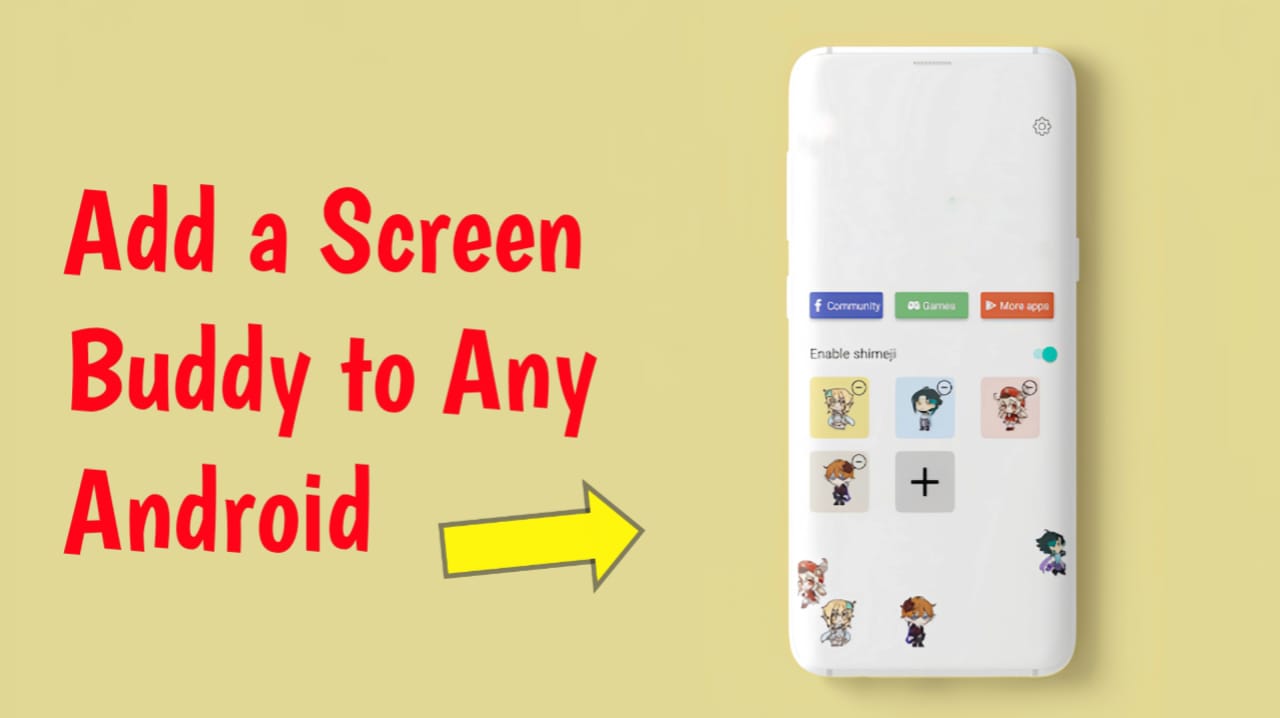
Smartphones in 2026 are no longer just tools — they are personalized digital spaces. One of the biggest customization trends right now is Screen Buddies: small animated characters that float on your Android screen, react to your touch, and sometimes even assist you.
If you’ve seen cute anime assistants, virtual pets, or floating mascots on someone’s phone and wondered how to add one to your device — this complete, beginner-friendly guide will show you exactly how.
What Is a Screen Buddy?
A Screen Buddy is a small animated character or assistant that appears on top of your apps. It can:
- Float above all apps
- Respond to touch
- React when you charge your phone
- Speak notifications (in some apps)
- Move around your screen
- Show emotions or idle animations
Screen Buddies are powered by Android’s “Draw over other apps” permission, which allows apps to display floating elements.
They are especially popular among:
- Anime lovers
- Virtual pet fans
- Customization enthusiasts
- Aesthetic Android users
- Content creators and TikTok users
Requirements Before You Start
Before adding a screen buddy to your Android device, make sure you have:
- Android 8.0 or above (recommended Android 11+)
- At least 100MB free storage
- Stable internet connection
- Permission to install apps from Play Store or external sources
Method 1: Add a Screen Buddy Using Play Store Apps (Easiest Way)
This is the safest and easiest method.
Step 1: Open Google Play Store
Launch the Play Store on your Android phone.
Step 2: Search for Screen Buddy Apps
Search using keywords like:
- “Screen Buddy”
- “Anime assistant”
- “Virtual pet overlay”
- “Floating character app”
Popular apps usually include:
- Animated character assistants
- Virtual pet overlays
- Live 2D anime buddies
Step 3: Install the App
Tap Install and wait for it to download.
Step 4: Enable Overlay Permission
After installation:
- Open the app
- It will ask for “Display over other apps” permission
- Tap Allow
- Enable the toggle
Without this permission, your screen buddy will not appear.
Step 5: Choose Your Character
Most apps allow you to:
- Select different characters
- Adjust size
- Change transparency
- Enable sounds
- Customize reactions
Select your favorite buddy and activate it.
Step 6: Enjoy Your Floating Assistant
Your screen buddy will now appear on top of all apps.
You can usually:
- Drag it around
- Tap for reactions
- Disable from notification bar
Method 2: Add a Screen Buddy Using APK Files (Advanced Users)
⚠ Only download APK files from trusted websites.
Step 1: Enable Unknown Sources
Go to:
Settings → Security → Install Unknown Apps
Allow your browser to install apps.
Step 2: Download the APK
Search for trusted screen buddy APKs on reputable Android forums or developer websites.
Step 3: Install the APK
Tap the downloaded file and install it.
Step 4: Grant Permissions
Just like Play Store apps, enable:
- Display over other apps
- Notifications (optional)
- Accessibility (if required)
Your buddy should now appear.
Method 3: Use Live2D or Custom Animated Characters (Pro Method)
If you want a fully customized animated assistant:
- Download a Live2D-supported Android assistant app
- Import custom character models
- Adjust physics settings
- Set idle animations
This method is ideal for:
- VTuber fans
- Developers
- Custom ROM users
- Advanced Android customization enthusiasts
Best Screen Buddy Features in 2026
Modern screen buddy apps now include:
- AI chat integration
- Mood detection
- Battery reaction animations
- Charging effects
- Notification reading
- Mini productivity reminders
- Voice interaction
Some even integrate with AI assistants to provide small task reminders.
How to Remove a Screen Buddy
If you want to remove your buddy:
Option 1: From App Settings
Open the screen buddy app → Disable character → Turn off overlay.
Option 2: From Android Settings
Go to:
Settings → Apps → Special App Access → Display Over Other Apps
Turn off permission.
Option 3: Uninstall the App
Long press the app icon → Uninstall.
Are Screen Buddies Safe?
Generally yes — if downloaded from trusted sources.
However:
- Avoid suspicious APK websites
- Check app reviews
- Monitor battery usage
- Do not grant unnecessary permissions
Because they use overlay permissions, always install from trusted developers.
Do Screen Buddies Drain Battery?
Lightweight apps consume very little battery. However:
- Heavy animation apps may increase usage
- AI-powered assistants use more RAM
- Background audio effects consume more power
To reduce battery usage:
- Disable sound
- Lower animation frame rate
- Reduce character size
- Turn off background AI features
Troubleshooting: Screen Buddy Not Showing?
If your buddy is not appearing:
✔ Restart your phone
✔ Re-enable overlay permission
✔ Disable battery optimization for the app
✔ Clear app cache
✔ Update Android system
Some phones (especially certain brands) restrict overlay apps by default.
Why Screen Buddies Are Trending in 2026
The rise of:
- AI personalization
- Aesthetic Android setups
- Virtual companions
- Digital well-being tools
has made screen buddies extremely popular.
People now want their phones to feel more alive, expressive, and interactive.
Final Thoughts
Adding a Screen Buddy to your Android device in 2026 is simple, fun, and highly customizable. Whether you want a cute anime companion, a virtual pet, or an AI-powered floating assistant, there’s an option available for every type of user